Making comfy wallpapers from any image
In this tutorial I will explain how to make a nice wallpaper from any image in GIMP!
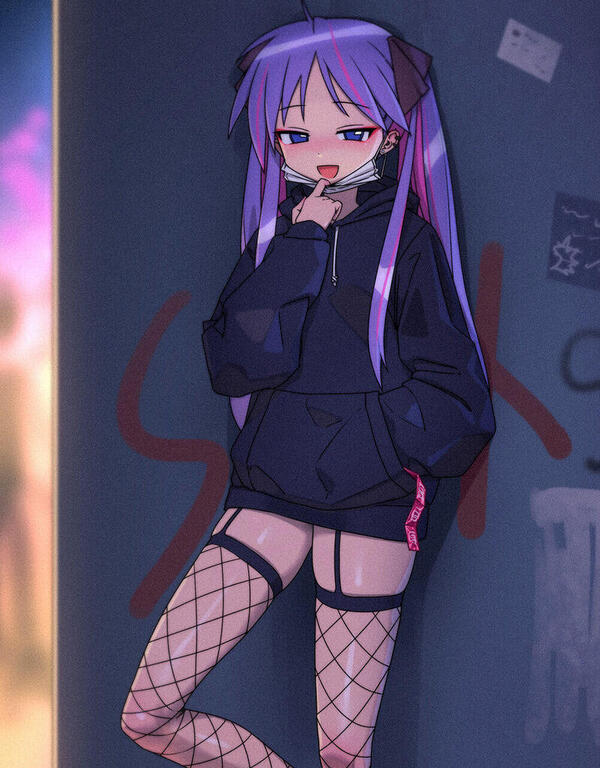
To get started, pick a pretty image you want to turn into a pape. I got this one
Next open GIMP and click file > new. A window will popup that looks like this:
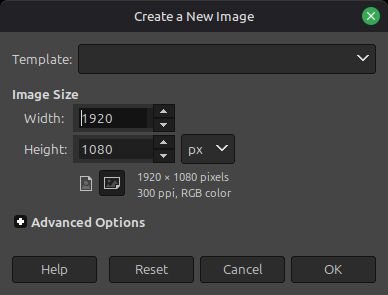
Here you will input your desired wallpaper size. In my case I just went with 1920x1080 as this is my screen resolution.
Press OK. You will now have a solid color background.
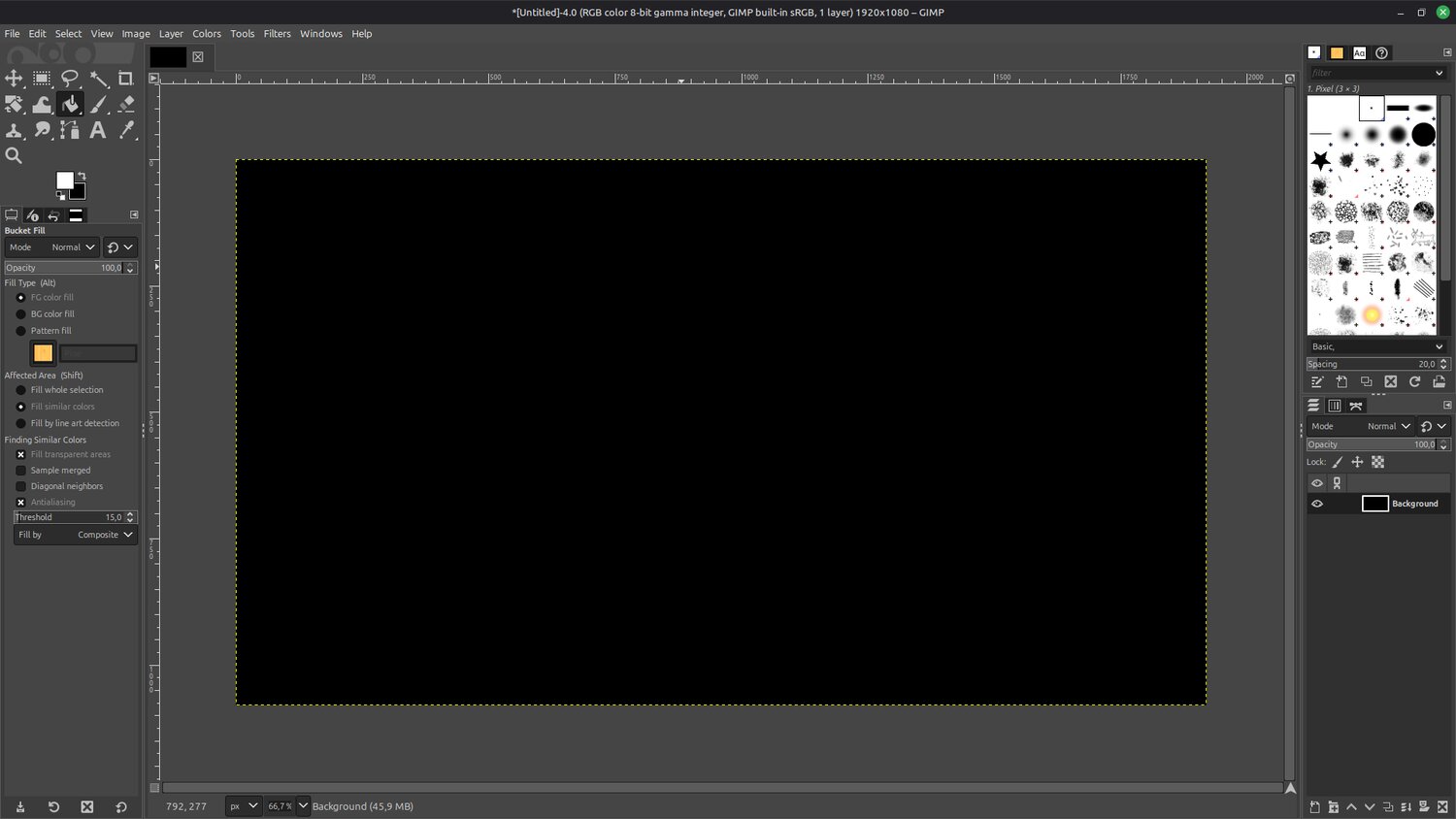
Next, import your image. You can just drag and drop it into GIMP.
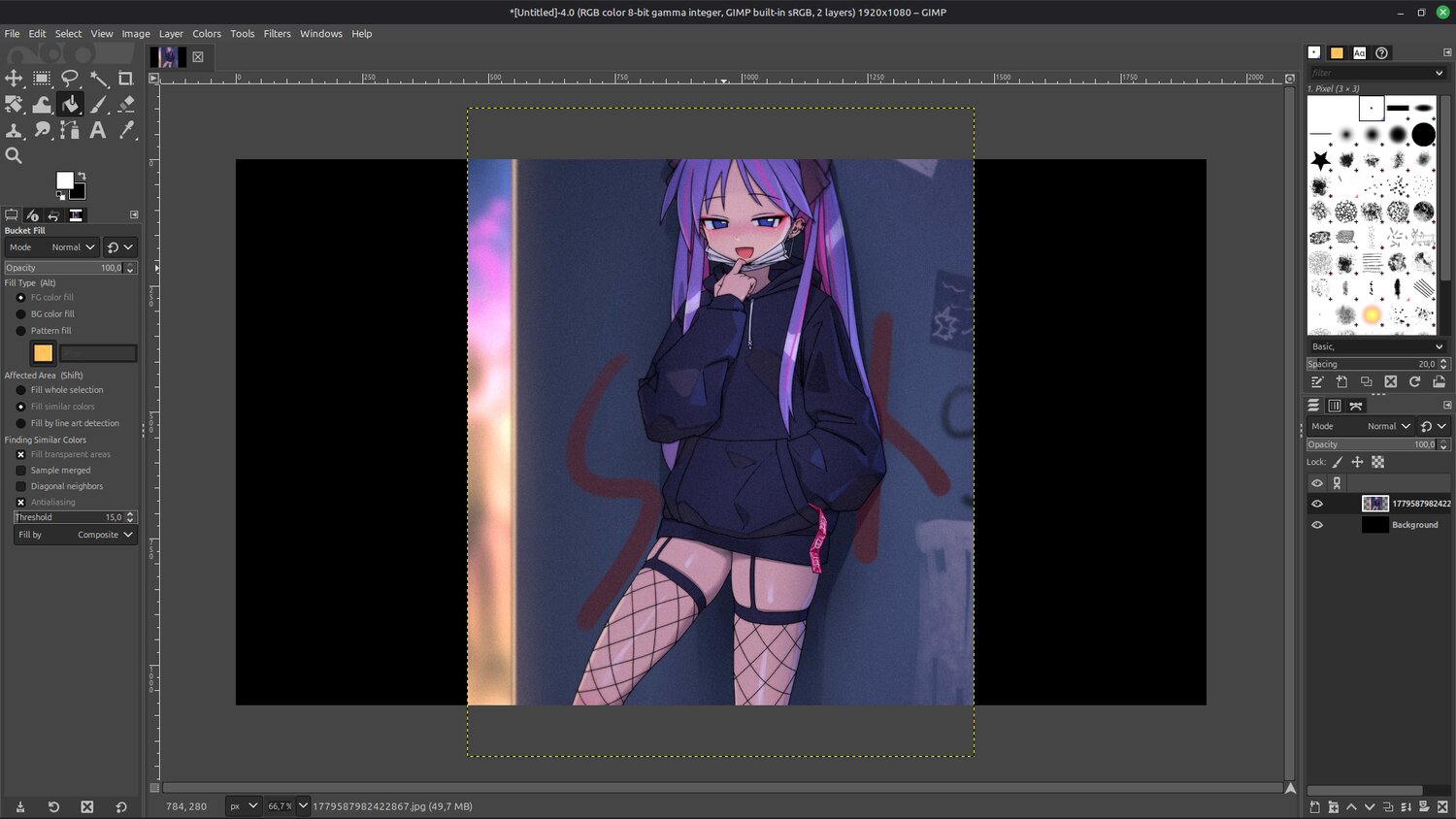
The image is a bit to big so I will scale mine to be smaller. If you start with a small image, you might want to make it bigger.
To scale the image, on the right, right click the layer containing your image and select Scale layer. Here I set the image hight to 900px.
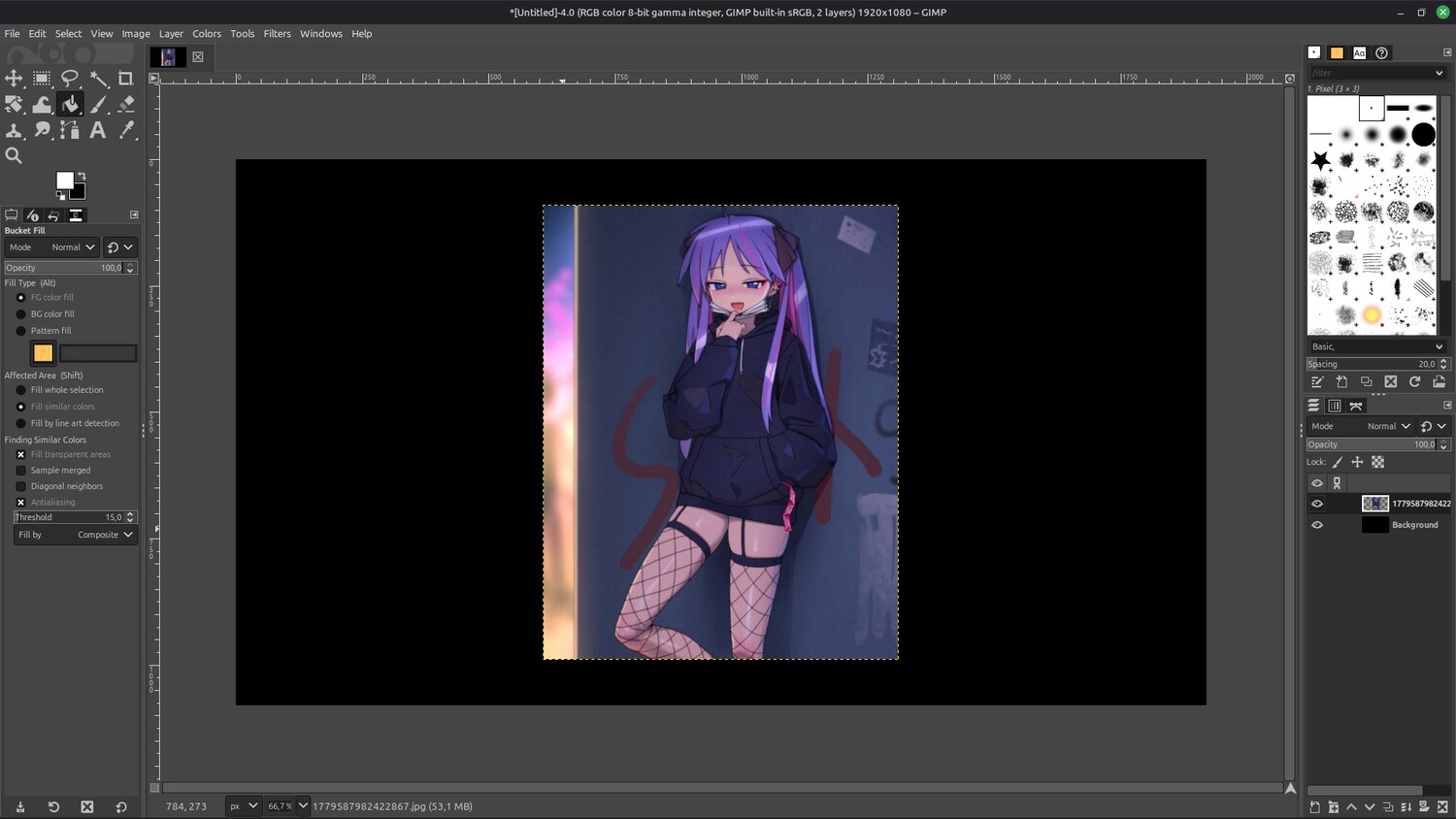
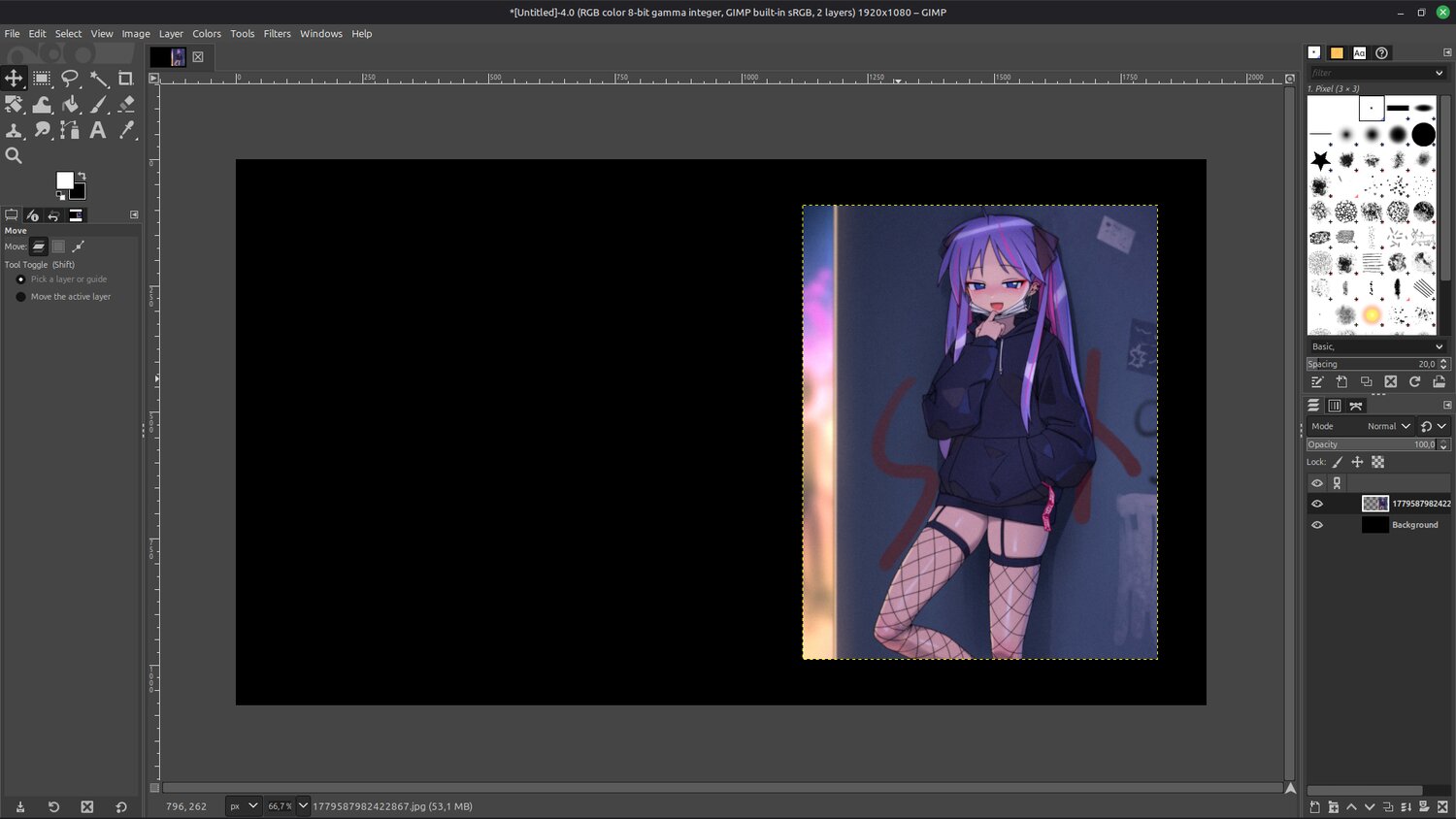
Now the image is centered on your background. If this is what you want, you can skip some of the following steps. I will move mine to the right. To do this, in the top left, select the Move tool (or press M) and move the image to the desired location.
If you want to align it to something, like for example center it vertically, you will need to select Tools > Transform tools > Align (or just press Q) and click on your image. Then you can click Align middle of target and this will center your image vertically. After this you should be left with something like this:
More than likely your background color will not be a great match with your image. To change this you will need to select a new Foreground color (the top one of the colored squares in the top left). If you click on this you will open this window:
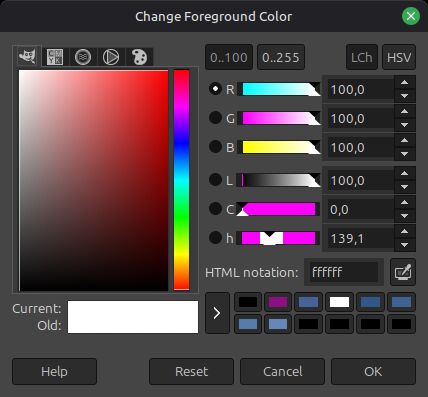
Next to the HTML notition is a color picker tool. Click on this and select a color from the image that would be good as a background color. I just picked something from her jacket.
Next select the background layer and pick the Bucket fill tool in the top left. Click anywhere on you background to change the color.
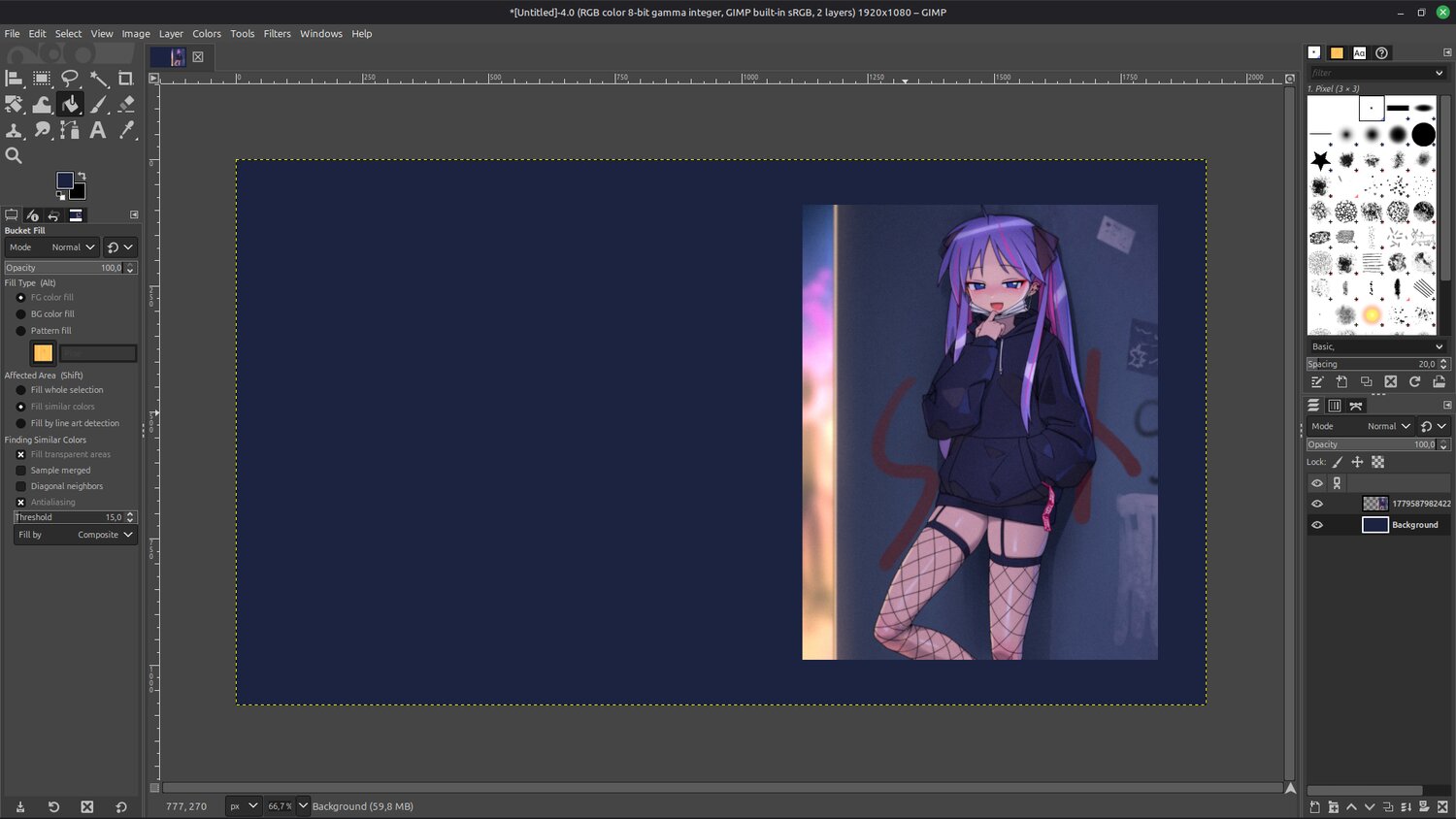
Now you already have a pretty nice pape. But to make it even better you can add a border around your image.
Before anything you will need to have the desired color selected as the foreground color. I just picked the purple/pink color from her hair. Now you can start adding a border.
To do this, select the layer with your image and right click it to open the menu. In that menu click Select > All and then Edit > Stroke selection. Set the border width you want (I picked 20px) and click Stroke
Now you have a border!!1!
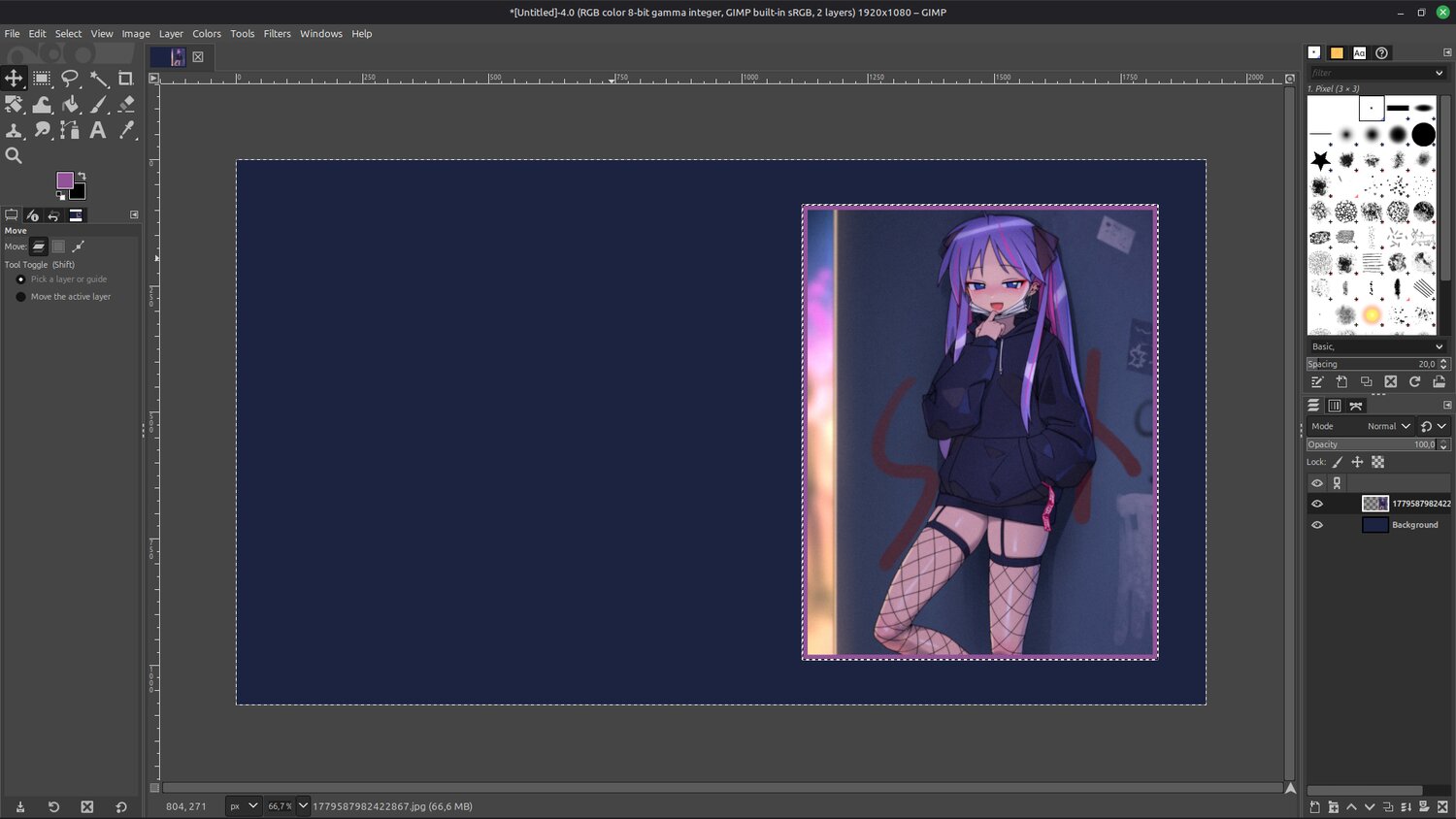
Now all thats left is to export it.

Download the pape if you want: DOWNLOAD

If you're good at it you can make alot of these in a very small amount of time.
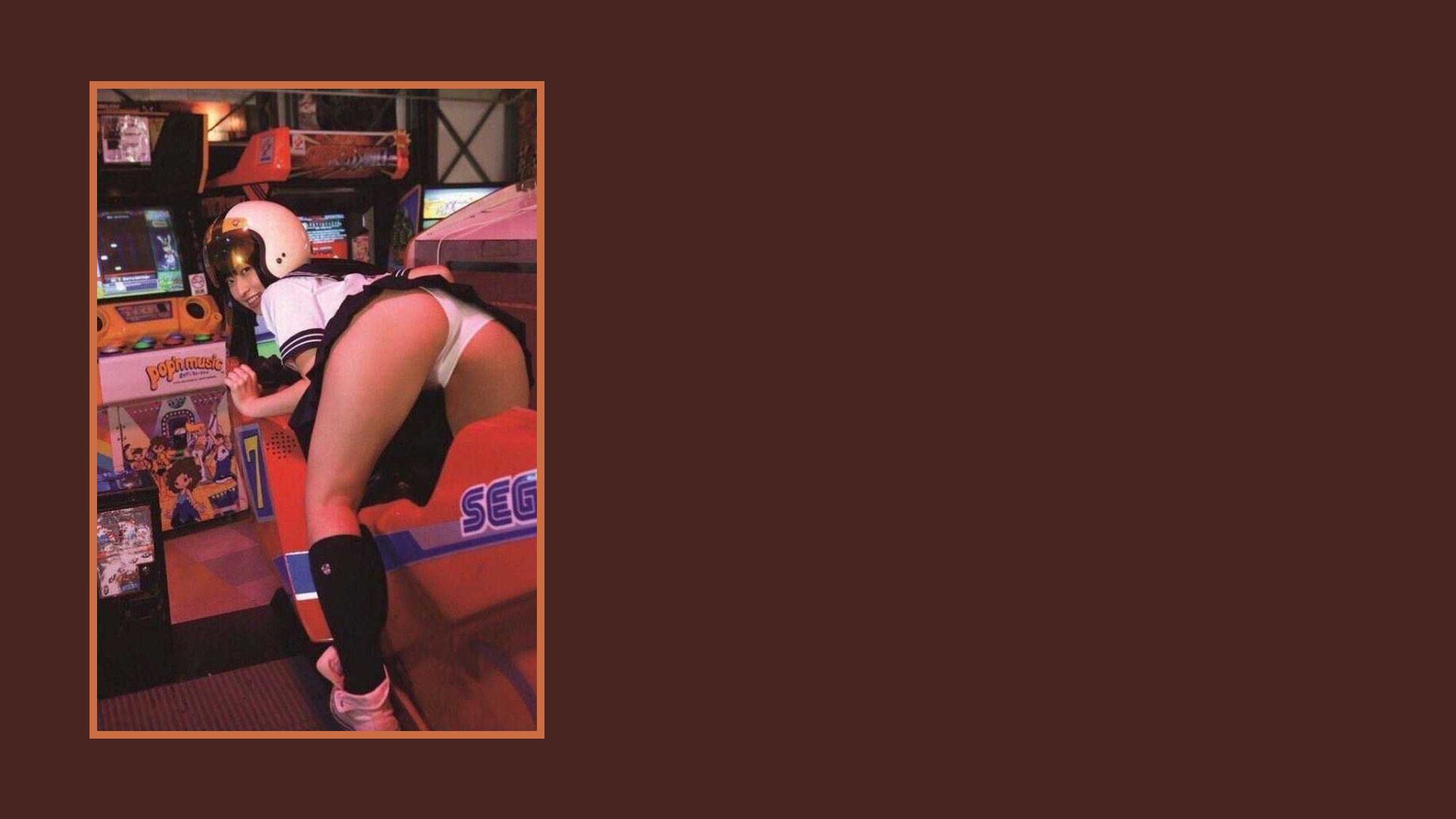
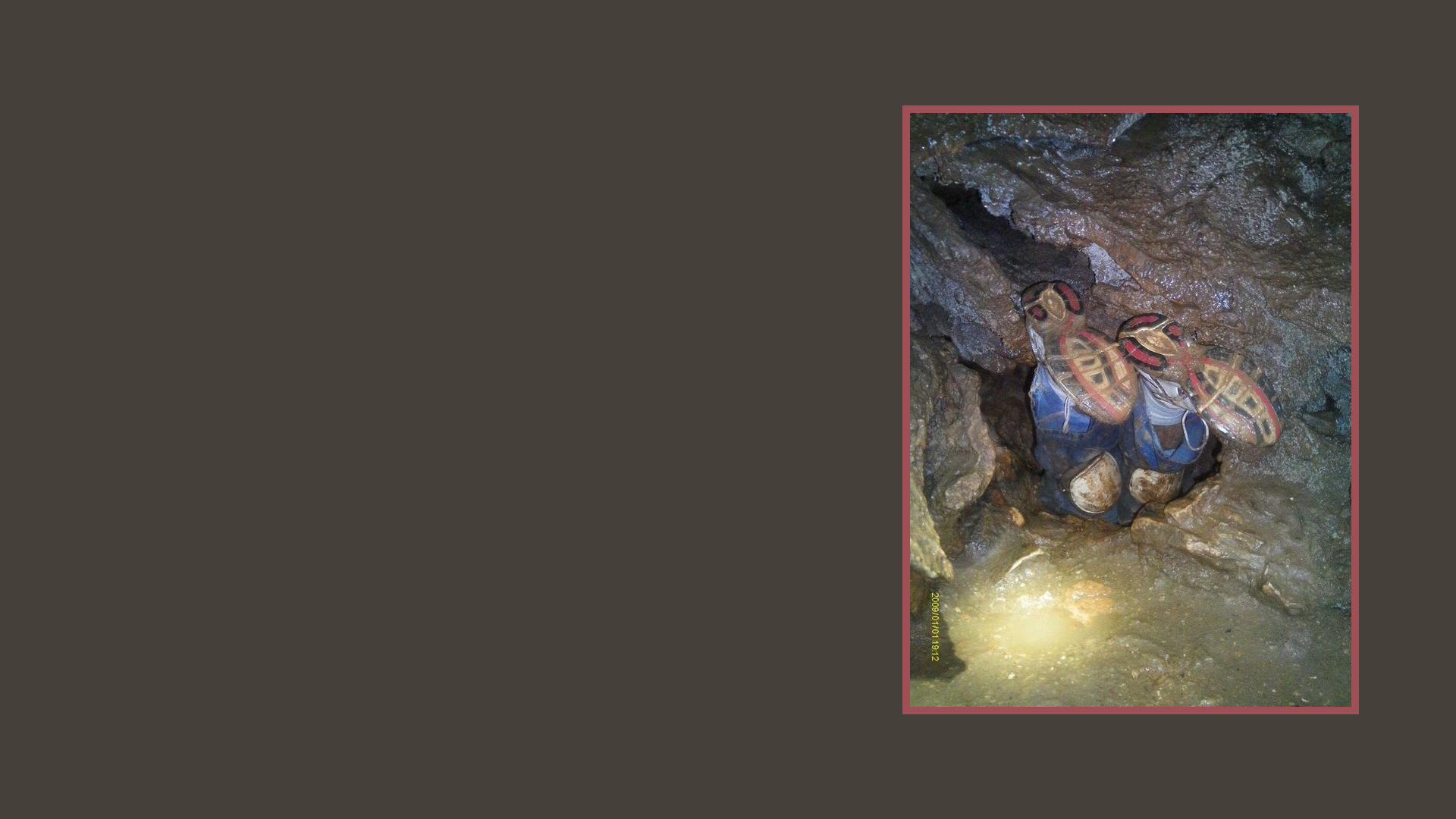
I went through my random image folder and found a cute Japanese gamer girl and and image of our favourite caving incident. In less than five minutes I made both of these wallpapers (click to download):